Feature
Save it from wherever you are.
Kosmica takes images and links from the Safari extension, the Share menu in any app, the K in your Mac menu bar, a watched Drops folder and a button on x.com posts. Turn on Collect Screenshots and new screenshots land in your Inbox too.
$14.99 once for Mac and iPhone · No subscription · macOS 26 and iOS 26
At a glance
- Safari extension
- Mac and iPhone, included. Save an image, a link or a whole page, into the Inbox or a collection
- Share menu
- Share ▸ Add to Kosmica, on Mac and iPhone
- Menu bar
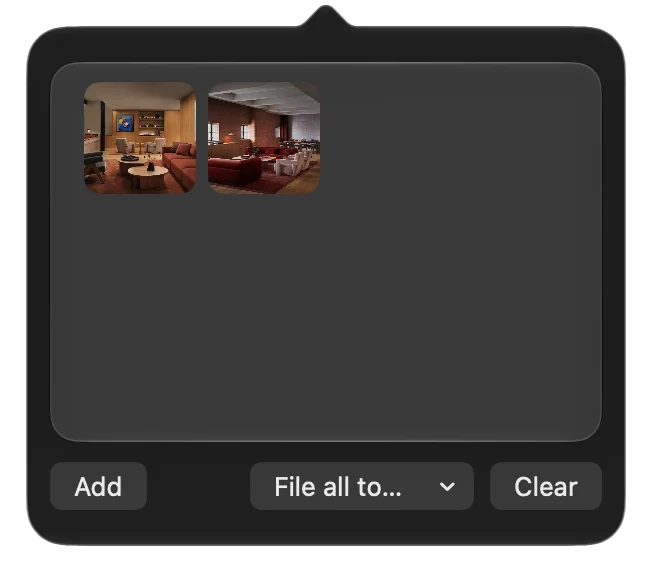
- Drop files on the K, click to save what you copied, ⌥-click for the shelf
- Screenshots
- Collect Screenshots, off by default
- Also
- Drag and drop, paste, Continuity Camera, Drops folder, x.com K button, Add Link control
How it works
Pick the way that is closest
Right-click an image in Safari, use the toolbar button, share from Photos, or drop a file on the K in the menu bar.
It lands in your Inbox
Everything goes to the Inbox unless you choose a collection. In Safari, Shift picks a collection as you save.
Kosmica does the rest
Tags, text, colours and a visual fingerprint are worked out on your device. Saving something you already have asks what to do.
Good to know
- The Safari extension works on Mac and iPhone. A Chrome extension is coming later. Firefox and Edge are not supported.
- On Mac, Collect Screenshots watches the folder you choose. On iPhone, new screenshots arrive each time you open Kosmica, with no backlog of old ones.
- Kosmica imports HEIC, RAW photos, Illustrator files and SVGs with transparency, and drops from Photos.
Questions
Is there a browser extension?
Yes, for Safari on Mac and iPhone, included with the app. It adds Save to Kosmica to the context menu and the toolbar, saves images, links or whole pages, and lets you pick a collection. On x.com it adds a K button to posts. A Chrome extension is coming later.
Can Kosmica collect my screenshots automatically?
Yes. Turn on Collect Screenshots in Settings ▸ Importing. On Mac you choose the folder where macOS saves screenshots, and new ones land in the Inbox as they appear. On iPhone, screenshots taken since you last looked go to the Inbox each time you open Kosmica. Old screenshots are not pulled in.
What does the menu bar K do on Mac?
It is a drop target. Drop images, files or links on it to add them to the Inbox, or click it to save what you copied. ⌥-click opens the shelf, which shows what you just added so you can file it all into a collection at once.
How do I save from iPhone?
Use Share ▸ Add to Kosmica in Photos, Safari or any app, the Safari extension toolbar button, or the + in the Library tab, which brings in Photos, scanned documents and files. You can also drag images and links into Kosmica from other apps.
Keep exploring
- Feature
Link snapshots and previews
Paste a link. Keep a snapshot, a title and a summary.
- Feature
Collections and shared collections
Boards for projects and moods. Share one through iCloud.
- Use case
Best Mac app for organizing screenshots
New screenshots collect themselves, and the text in them is searchable.
- Use case
Best Mac app for saving links
Links saved with a snapshot, a title and a summary, next to your images.