Feature
Find images that look alike.
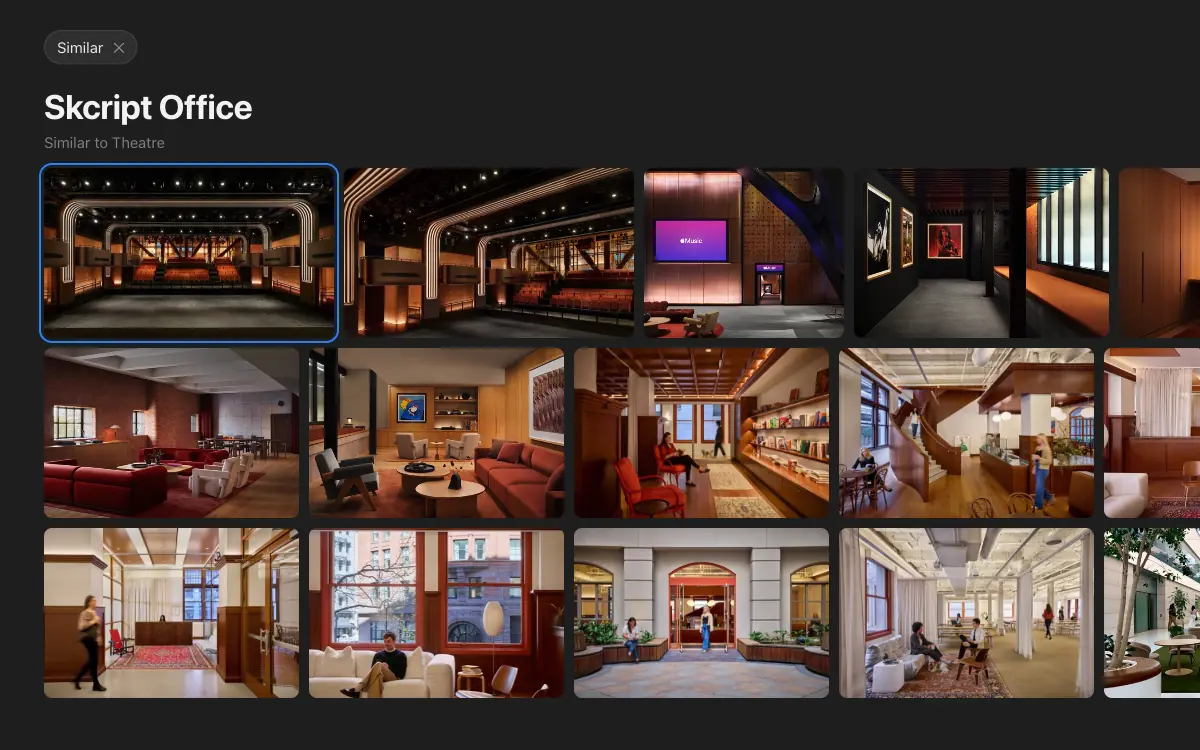
Right-click any image in Kosmica on Mac and choose Find Similar to see the look-alikes from your whole library. Kosmica compares the pictures themselves on your device, so it works without tags, names or an internet connection.
$14.99 once for Mac and iPhone · No subscription · macOS 26 and iOS 26
At a glance
- What it compares
- The picture itself, with Vision feature prints computed on your device
- Where
- Find Similar in the inspector or right-click menu on Mac, and a Similar collection for look-alikes on Mac and iPhone
- Also
- Visual Intelligence on iPhone can show Kosmica matches for what is on your camera or screen
- Works offline
- Yes. The comparison runs on your device
- Price
- Included in the $14.99 one-time purchase
How it works
Kosmica makes a visual fingerprint
When an image arrives, Vision writes a feature print: a compact description of what the picture looks like.
You choose Find Similar
Right-click the tile, or open the inspector with ⌘I. A Similar chip appears in the toolbar.
The closest images come first
Kosmica ranks your library by visual distance to the one you picked. Clear the chip to go back.
Good to know
- Find Similar searches your own library. It is not a web reverse image search and does not look things up online.
- The Similar smart folder groups near-duplicates and look-alikes, so you can tidy up repeats. File ▸ Clean up Library also finds exact duplicates and large files.
- Visual Intelligence results need an iPhone with Visual Intelligence and iOS 26.
Questions
How does Find Similar work?
Kosmica asks Apple’s Vision framework for a feature print of every image you save. A feature print describes how a picture looks, not what it is called. When you choose Find Similar, Kosmica measures the distance between prints and shows the closest images first. All of this happens on your Mac or iPhone.
Is this a reverse image search?
Not a web one. Find Similar looks only inside your own Kosmica library, so it answers “where are the other pictures like this one?” rather than “where did this come from online?”. The comparison runs on your device, which is why it also works offline.
Can it find duplicates?
Yes. The Similar smart folder gathers near-duplicates and look-alikes, and long chains of look-alikes split into tighter groups. For exact copies and big files, use File ▸ Clean up Library, which lists exact duplicates, near-duplicates and large files for you to review.
Does it work on iPhone?
Partly. Find Similar on a single image is on Mac. On iPhone, the Similar collection groups near-duplicates and look-alikes from your whole library, and Kosmica takes part in Visual Intelligence: point the camera at something or use it on a screenshot, and Kosmica can show items from your library that look like it.
Keep exploring
- Feature
Colour palettes and colour search
Every image keeps its palette. Search by colour name or hex.
- Feature
Natural-language search
Type what you remember. Kosmica finds the picture.
- Use case
Best Mac app for reference images
Keep references for drawing and design, and find them by look or colour.
- Use case
Best Mac app for design inspiration
Save inspiration from anywhere and find it by colour, words or likeness.